
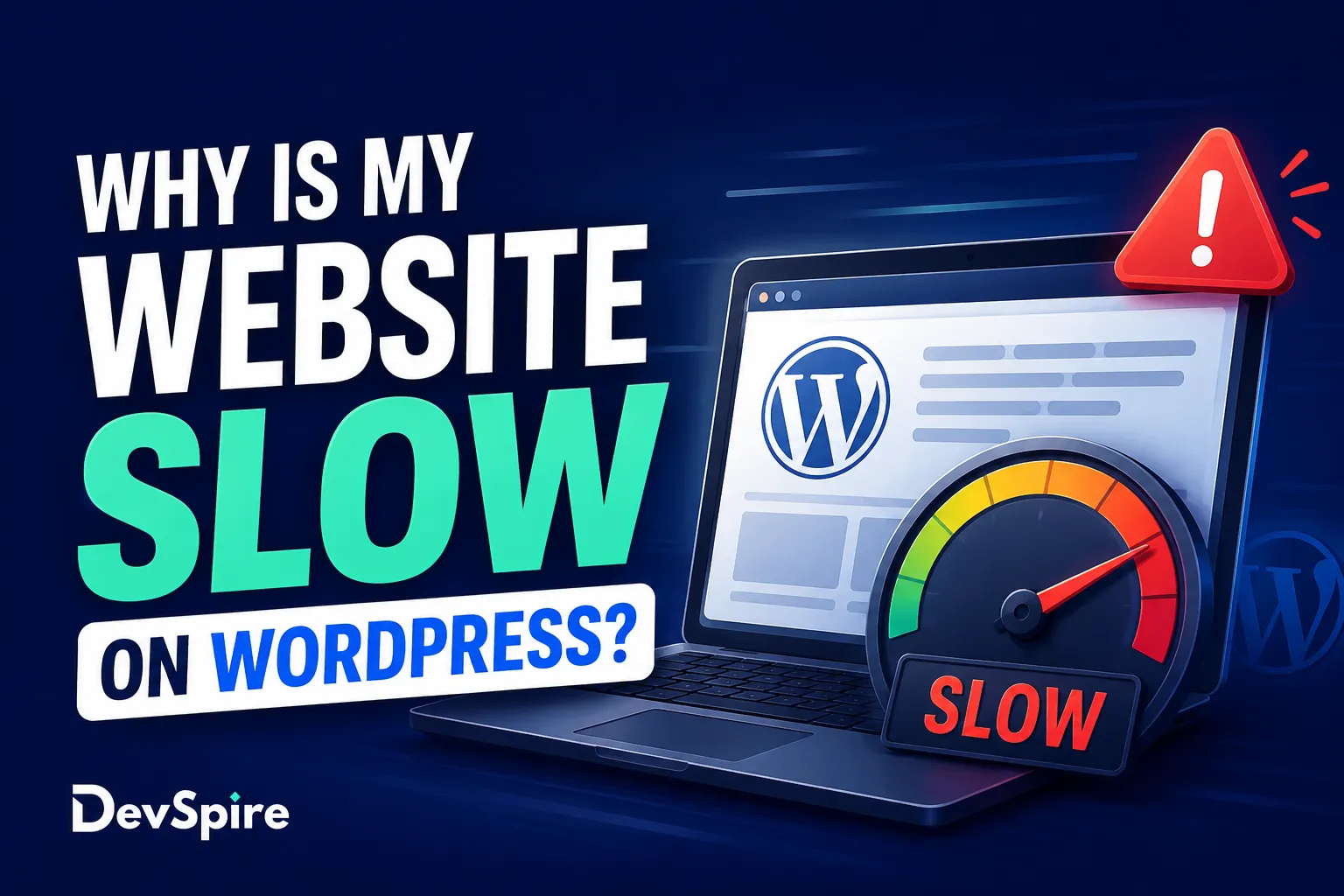
You spent time building the site. The design looks clean. The copy is done. Then someone loads it on their phone and waits. And waits. That gap between what a site looks like and how fast it actually loads is one of the most common complaints from WordPress site owners, and it happens more often than it should.
The good news is that a slow WordPress site usually has a few specific causes. None of them are mysterious. At DevSpire, we’ve worked through these issues on dozens of client sites, and the same problems come up repeatedly. This post covers what those causes actually are, how to confirm which one you’re dealing with, and what the fix looks like.
The most common reasons WordPress sites run slow
Most slowdowns trace back to a handful of predictable places. Once you know what to look for, the diagnosis gets much faster.
Unoptimized images are usually the biggest culprit
Images are almost always the first thing to check. A single high-resolution photo uploaded straight from a camera or stock library can easily be 4 to 6 MB. Multiply that by 10 or 15 images on a page and you’re making visitors download 50 to 80 MB before they see anything useful.
The fix is converting images to WebP format, which is significantly smaller than JPEG or PNG without visible quality loss. Pair that with compression (tools like ShortPixel or Imagify handle this automatically on upload) and enable lazy loading so images below the fold don’t load until someone scrolls to them. These three changes alone can cut page weight by 40 to 60 percent on image-heavy pages.
One thing worth checking: WordPress auto-generates multiple image sizes on upload. If your theme is pulling in full-resolution originals instead of scaled versions, that’s a configuration issue, not just a compression one.
Too many plugins, or poorly coded ones
The WordPress plugin ecosystem has around 60,000 options. That’s both the appeal and the problem. Plugins are how most WordPress sites get their features, but every active plugin has the potential to add scripts, stylesheets, and database queries to every page load, whether that page needs them or not.
A contact form plugin that loads its JS on your blog posts. A slider plugin that stays active even on pages with no slider. A SEO plugin that fires database queries on every request. These are real scenarios and they add up fast.
The practical fix is two things: audit your installed plugins and deactivate anything you’re not actively using, and test the ones you are using with Query Monitor. Query Monitor shows you which plugins are adding how many database queries and how long those queries take. If a single plugin is responsible for 30 of your 80 queries, that’s worth knowing.
Cheap or shared hosting
Server response time, measured as Time to First Byte (TTFB), is the delay between a visitor requesting your page and the server sending back the first byte of data. If that number is above 600ms consistently, the problem often sits with the host, not the site code.
Shared hosting puts hundreds, sometimes thousands, of sites on a single server. When one site gets a spike in traffic, every other site on that server slows down. For low-traffic sites this is usually fine. For anything with real usage, managed WordPress hosting on a dedicated or VPS plan is the better call.
No caching setup
Without caching, every time someone visits your site, WordPress sends a request to the database, builds the page from scratch, and delivers it. That process takes time, and it repeats for every single visitor.
Caching saves a ready-built version of each page and serves it directly, skipping the database request entirely. For most sites, this alone cuts load times in half. WP Rocket is the most capable paid option. W3 Total Cache and LiteSpeed Cache are solid free alternatives, especially if your host supports LiteSpeed.
One caveat: caching configuration matters. A misconfigured cache that serves stale pages, or one that doesn’t exclude the right URLs (checkout pages, account pages), causes its own problems. If you set up caching and things start behaving oddly, the cache settings are usually where to look first.
Render-blocking JavaScript and CSS
Browsers read page code from top to bottom. When they hit a JavaScript or CSS file loaded in the header, they stop rendering the page until that file fully downloads and processes. This is what’s called render-blocking: the visitor sees a blank screen or partial page while these files load, even if the actual visible content was ready seconds ago.
The fix is deferring non-critical JavaScript so it loads after the visible content has appeared, and inlining only the CSS needed for above-the-fold content. Most caching plugins have options for this, though getting it right without breaking things usually takes some testing.
A bloated or poorly coded theme
Page builders like Elementor and Divi are popular for a reason: they let non-developers build complex layouts visually. But they come with a tradeoff. These tools load large amounts of CSS and JavaScript on every page, regardless of whether that page uses the features those files support.
This doesn’t mean page builders are wrong for your site. It means the choice of theme and builder has a real impact on baseline load time, and if speed is a priority, it’s worth knowing that before you build. A lightweight theme like Astra or GeneratePress paired with a builder is generally faster than a heavy premium theme with the builder baked in.
If your theme is causing the slowdown and a redesign isn’t on the table immediately, WordPress theme customization can sometimes strip out the unnecessary parts without replacing the theme entirely.
How to check what’s actually slowing your site down
Before you touch anything, get some data. Guessing at the cause wastes time and sometimes makes things worse.
Google PageSpeed Insights gives you a free score and flags specific issues in plain language. Run it on your homepage and one or two inner pages since they often have different problems.
GTmetrix breaks down exactly what’s loading, in what order, and how long each resource takes. The waterfall chart is the most useful view: look for anything that takes more than 1 second and ask whether it’s necessary.
Query Monitor (a free WordPress plugin) shows database queries, PHP errors, and which plugins are firing what on each page load. If your site’s slowdown is coming from the back end rather than large files, this is where you’ll find it.
If you’re spending too much time in diagnostics and want a second opinion, it’s worth looking at how the top technical SEO agencies approach performance audits as part of their broader site health work.
Quick fixes vs. fixes that need a developer
Not everything here requires outside help. But some of it does, and it’s worth being honest about that upfront.
Things you can do yourself without much risk: install a caching plugin and follow the setup wizard, run your images through a compression tool before uploading (or install an auto-compression plugin), and deactivate plugins you don’t actually use. These three actions alone often produce a noticeable improvement.
Things that tend to go wrong without some development experience: cleaning up a bloated database (a bad cleanup can delete content), reconfiguring a CDN (wrong settings break assets across the site), switching themes mid-project (template differences cause layout issues), and moving to a new host (DNS, SSL, and file transfer errors are common).
If you want these done without the risk, WordPress speed optimization is one of the services we handle regularly for clients who’ve already tried the basic fixes and still aren’t where they need to be.
How page speed affects your SEO and conversions
Google has included Core Web Vitals as a ranking signal since 2021. These metrics, Largest Contentful Paint (LCP), Interaction to Next Paint (INP), and Cumulative Layout Shift (CLS), measure how fast a page loads for real users, not just in lab conditions. A site that fails these benchmarks consistently is competing at a disadvantage in search results, all else being equal.
The conversion side is just as direct. Google’s own research found that as page load time goes from 1 second to 3 seconds, the probability of a visitor bouncing increases by 32 percent. At 5 seconds, that number jumps to 90 percent. Visitors don’t wait. They leave.
For service businesses especially, where a single converted visitor can be worth thousands in revenue, shaving two seconds off load time isn’t a technical exercise. It’s a business decision.
Wrapping up
WordPress can be fast. It doesn’t come that way by default, but the gap between a slow site and a quick one usually comes down to a small number of fixable issues: images, plugins, hosting, caching, and theme weight. Most sites have at least two or three of these in play at once.
The diagnostic tools are free and reasonably straightforward. If you run PageSpeed Insights and GTmetrix today, you’ll have a good picture of where your site stands. If you’ve already gone through the standard fixes and the site still lags, the issue is usually something that needs hands-on work rather than another plugin.